---
title: How do I create a Promo Code?
description: Create a promo code to help entice customers or fill spots in your event
---
[Skip to content](https://help.tournkey.com/university/how-do-i-create-a-promo-code#main-content)
English
Show submenu for translations
[Support](https://help.tournkey.com/university/kb-tickets/new?hsLang=en)

- [My Tickets](https://help.tournkey.com/support)
Open main navigation
Close main navigation
- [My Tickets](https://help.tournkey.com/support)
- English
Show submenu for translations
- [Support](https://help.tournkey.com/university/kb-tickets/new)
- [Contact us](https://help.tournkey.com/knowledge/kb-tickets/new)
[Contact us](https://help.tournkey.com/knowledge/kb-tickets/new?hsLang=en)
Got a Problem? Let us help you find a solution.
- There are no suggestions because the search field is empty.
1. [Help Center](https://help.tournkey.com/university?hsLang=en)
2. [Event App](https://help.tournkey.com/university/event-app?hsLang=en)
3. [Payments](https://help.tournkey.com/university/event-app?hsLang=en#payments)
# How do I create a Promo Code?
## Create a promo code to help entice customers or fill spots in your event
1. On the Organizer Dashboard select 'Promocodes'
2. In the top right corner select 
3. Enter the code you'd like to use for this particular discount
4. In the second column enter the amount of discount you'd like to offer and designate the amount by dollar or percentage 
5. Rules
1. Each promo code can be assigned to a minimum spend requirement or a total number of items required i.e., 10 registrations, 5 tickets, etc.
2. The system will restrict the promo code to one of the two options and will be designated by the green outline

6. Select a start date and time
7. Select an end date and time
8. Enter the total number of redemptions you'd like to allow for each promo code
9. Activate the promo code by toggling the status on

10. You can restrict the promo code by accessing some advanced details

11. Select at least one product to which the promo code will apply to
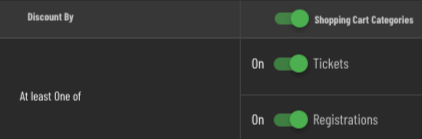
12. Under the Tournaments & Divisions tab, all organizational divisions and events will be listed. The promo code can be activated for each division by toggling it from off to on 
13. Alternatively, you can  and turn on multiple divisions by activating the status toggle  at the top of the column.
1. Repeat the search and toggle to activate additional divisions or tournaments
14. Once all of the details of the promo code have been finalized click 
- [Getting Started](https://help.tournkey.com/university/getting-started?hsLang=en)
- [My Tournkey Account](https://help.tournkey.com/university/my-tournkey-account?hsLang=en#main-content)
- [Getting Started](https://help.tournkey.com/university/my-tournkey-account?hsLang=en#getting-started)
- [Waivers & Contracts](https://help.tournkey.com/university/my-tournkey-account?hsLang=en#waivers-contracts)
- [Profile](https://help.tournkey.com/university/my-tournkey-account?hsLang=en#profile)
- [Team App](https://help.tournkey.com/university/team-app?hsLang=en#main-content)
- [Payment](https://help.tournkey.com/university/team-app?hsLang=en#payment)
- [Team Details](https://help.tournkey.com/university/team-app?hsLang=en#team-details)
- [Registration](https://help.tournkey.com/university/team-app?hsLang=en#registration)
- [Hotels & Travel Support](https://help.tournkey.com/university/team-app?hsLang=en#hotels-travel-support)
- [Accommodations](https://help.tournkey.com/university/accommodations?hsLang=en#main-content)
- [Managing Your Team/Group Travel](https://help.tournkey.com/university/accommodations?hsLang=en#managing-your-team-group-travel)
- [Support](https://help.tournkey.com/university/accommodations?hsLang=en#support)
- [Collegiate](https://help.tournkey.com/university/accommodations?hsLang=en#collegiate)
- [Hoteliers](https://help.tournkey.com/university/accommodations?hsLang=en#hoteliers)
- [Payment](https://help.tournkey.com/university/accommodations?hsLang=en#payment)
- [Team Travel](https://help.tournkey.com/university/accommodations?hsLang=en#team-travel)
- [Ticketing](https://help.tournkey.com/university/ticketing?hsLang=en)
- [Organizations](https://help.tournkey.com/university/organizations?hsLang=en#main-content)
- [Account](https://help.tournkey.com/university/organizations?hsLang=en#account)
- [Point of Sale](https://help.tournkey.com/university/organizations?hsLang=en#point-of-sale)
- [Users](https://help.tournkey.com/university/organizations?hsLang=en#users)
- [Player App](https://help.tournkey.com/university/player-app?hsLang=en#main-content)
- [Teams](https://help.tournkey.com/university/player-app?hsLang=en#teams)
- [Create & Edit](https://help.tournkey.com/university/player-app?hsLang=en#create-edit)
- [Event App](https://help.tournkey.com/university/event-app?hsLang=en#main-content)
- [Payments](https://help.tournkey.com/university/event-app?hsLang=en#payments)
- [Marketing](https://help.tournkey.com/university/event-app?hsLang=en#marketing)
- [Event Setup](https://help.tournkey.com/university/event-app?hsLang=en#event-setup)
- [Registrations](https://help.tournkey.com/university/event-app?hsLang=en#registrations)
- [Travel](https://help.tournkey.com/university/event-app?hsLang=en#travel)
- [Events](https://help.tournkey.com/university/event-app?hsLang=en#events)
- [Facility Management](https://help.tournkey.com/university/event-app?hsLang=en#facility-management)
- [Marketing](https://help.tournkey.com/university/marketing?hsLang=en)
- [Volunteering](https://help.tournkey.com/university/volunteering?hsLang=en)
- [Event Tourism](https://help.tournkey.com/university/event-tourism?hsLang=en)
- [Tips & Videos](https://help.tournkey.com/university/tips-videos?hsLang=en)
[](http://www.tournkey.app)
[mailto:email@email.com](mailto:email@email.com)
Copyright © 2026, Tournkey Tournament Systems Inc.
[Knowledge Base Home](https://help.tournkey.com/knowledge?hsLang=en) [Support](https://help.tournkey.com/knowledge/kb-tickets/new?hsLang=en) [Book a Demo](https://tournkey.com/demo/) [Blog](https://blog.tournkey.com/?hsLang=en)
© Tournkey. All rights reserved.