---
title: How to complete an event payment in Tournkey
description: You've registered for an event and paid the deposit or selected pay later. Now you want to complete the transaction.
---
[Skip to content](https://help.tournkey.com/university/how-do-i-pay-my-remaining-balance#main-content)
English
Show submenu for translations
[Support](https://help.tournkey.com/university/kb-tickets/new?hsLang=en)

- [My Tickets](https://help.tournkey.com/support)
Open main navigation
Close main navigation
- [My Tickets](https://help.tournkey.com/support)
- English
Show submenu for translations
- [Support](https://help.tournkey.com/university/kb-tickets/new)
- [Contact us](https://help.tournkey.com/knowledge/kb-tickets/new)
[Contact us](https://help.tournkey.com/knowledge/kb-tickets/new?hsLang=en)
Got a Problem? Let us help you find a solution.
- There are no suggestions because the search field is empty.
1. [Help Center](https://help.tournkey.com/university?hsLang=en)
2. [Team App](https://help.tournkey.com/university/team-app?hsLang=en)
3. [Payment](https://help.tournkey.com/university/team-app?hsLang=en#payment)
# How to complete an event payment in Tournkey
## You've registered for an event and paid the deposit or selected pay later. Now you want to complete the transaction.
### Step 1: Log In to Tournkey
1. Navigate to **[www.tournkey.app](http://www.tournkey.app)**
2. Log in using your user credentials
3. If you’ve forgotten your password:
- Enter your email on the login screen
- Select **“Forgot Password? Click Here”** on the next screen
- Follow the instructions to reset your password
---
### Step 2: Select the Correct Team
After logging in, you will be directed to:
- Your user profile **or**
- The last team managed by your account
To switch teams:
1. Go to your **Coach Dashboard**
2. Select **“Change Team”** in the middle of the dashboard

3. Choose the team you would like to manage
---
### Step 3: Access Your Event
1. Locate your event in the **Manage Upcoming Events** widget
2. Select **“Manage”** beside the event
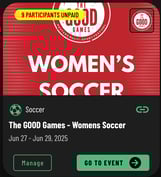
This will take you to your **Registration HUB**, which contains all details related to your event participation.
---
### Step 4: Complete Your Payment
There are two ways to complete your payment from the Registration HUB.
#### Option 1: Remaining Balance
1. Find **remaining balance** on your HUB
2. Click **completepayment**

#### Option 2: Pay Through Required Items
1. All events may include **required items** as part of registration
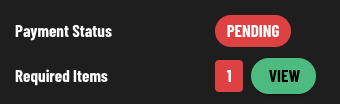
2. By default, **payment is a required item**
3. Select **“View”** on the required items section
4. In the pop-up window, select **“Pay”**
---
### Step 5: Enter Payment Details
1. Choose your payment option available for this event
2. Enter your payment details
3. Review and agree to the payment terms
4. Submit your payment
---
#### Important Notes About Payments & Promo Codes
**Please note the following restrictions:**
- If you have made a **partial payment**, you will **not** be able to apply a promo code to the remaining balance
- Only **one promo code** can be applied per payment
- If you have multiple promo codes you’d like to use:
- Complete your payment first
- Add additional items to your cart afterward and apply the next promo code
- [Getting Started](https://help.tournkey.com/university/getting-started?hsLang=en)
- [My Tournkey Account](https://help.tournkey.com/university/my-tournkey-account?hsLang=en#main-content)
- [Getting Started](https://help.tournkey.com/university/my-tournkey-account?hsLang=en#getting-started)
- [Waivers & Contracts](https://help.tournkey.com/university/my-tournkey-account?hsLang=en#waivers-contracts)
- [Profile](https://help.tournkey.com/university/my-tournkey-account?hsLang=en#profile)
- [Team App](https://help.tournkey.com/university/team-app?hsLang=en#main-content)
- [Payment](https://help.tournkey.com/university/team-app?hsLang=en#payment)
- [Team Details](https://help.tournkey.com/university/team-app?hsLang=en#team-details)
- [Registration](https://help.tournkey.com/university/team-app?hsLang=en#registration)
- [Hotels & Travel Support](https://help.tournkey.com/university/team-app?hsLang=en#hotels-travel-support)
- [Accommodations](https://help.tournkey.com/university/accommodations?hsLang=en#main-content)
- [Managing Your Team/Group Travel](https://help.tournkey.com/university/accommodations?hsLang=en#managing-your-team-group-travel)
- [Support](https://help.tournkey.com/university/accommodations?hsLang=en#support)
- [Collegiate](https://help.tournkey.com/university/accommodations?hsLang=en#collegiate)
- [Hoteliers](https://help.tournkey.com/university/accommodations?hsLang=en#hoteliers)
- [Payment](https://help.tournkey.com/university/accommodations?hsLang=en#payment)
- [Team Travel](https://help.tournkey.com/university/accommodations?hsLang=en#team-travel)
- [Ticketing](https://help.tournkey.com/university/ticketing?hsLang=en)
- [Organizations](https://help.tournkey.com/university/organizations?hsLang=en#main-content)
- [Account](https://help.tournkey.com/university/organizations?hsLang=en#account)
- [Point of Sale](https://help.tournkey.com/university/organizations?hsLang=en#point-of-sale)
- [Users](https://help.tournkey.com/university/organizations?hsLang=en#users)
- [Player App](https://help.tournkey.com/university/player-app?hsLang=en#main-content)
- [Teams](https://help.tournkey.com/university/player-app?hsLang=en#teams)
- [Create & Edit](https://help.tournkey.com/university/player-app?hsLang=en#create-edit)
- [Event App](https://help.tournkey.com/university/event-app?hsLang=en#main-content)
- [Payments](https://help.tournkey.com/university/event-app?hsLang=en#payments)
- [Marketing](https://help.tournkey.com/university/event-app?hsLang=en#marketing)
- [Event Setup](https://help.tournkey.com/university/event-app?hsLang=en#event-setup)
- [Registrations](https://help.tournkey.com/university/event-app?hsLang=en#registrations)
- [Travel](https://help.tournkey.com/university/event-app?hsLang=en#travel)
- [Events](https://help.tournkey.com/university/event-app?hsLang=en#events)
- [Facility Management](https://help.tournkey.com/university/event-app?hsLang=en#facility-management)
- [Marketing](https://help.tournkey.com/university/marketing?hsLang=en)
- [Volunteering](https://help.tournkey.com/university/volunteering?hsLang=en)
- [Event Tourism](https://help.tournkey.com/university/event-tourism?hsLang=en)
- [Tips & Videos](https://help.tournkey.com/university/tips-videos?hsLang=en)
[](http://www.tournkey.app)
[mailto:email@email.com](mailto:email@email.com)
Copyright © 2026, Tournkey Tournament Systems Inc.
[Knowledge Base Home](https://help.tournkey.com/knowledge?hsLang=en) [Support](https://help.tournkey.com/knowledge/kb-tickets/new?hsLang=en) [Book a Demo](https://tournkey.com/demo/) [Blog](https://blog.tournkey.com/?hsLang=en)
© Tournkey. All rights reserved.