
Step-by-step: Upload a required document
1) Open your Event registration page
-
From your dashboard, open the event you’re registered for (the video shows an event page under Events).
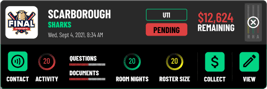
2) Find “Required Items” in Team Details
-
On the event page, look for the Team Details card.
-
Find the row labeled Required Items.
-
You’ll see:
-
A red number badge (this is how many items are still outstanding)
-
A VIEW button
-

3) Review the Requirements pop-up
A modal titled Events opens and lists requirements. In the video it shows:
-
Remaining Balance
-
Documents & Waivers (with a status like “1 of 2 Required Documents & Waivers Submitted”)
4) In “Other Documents”, identify what’s missing
A second modal opens titled OTHER DOCUMENTS and lists required uploads.
In the example shown:
-
Team Roster = COMPLETED (green)
-
Travel Permit = UPLOAD (red)
You’ll also notice icons beside completed documents:
-
Eye icon = view/preview
-
Download icon = download a copy (if available)
5) Upload the missing document
On the row that shows UPLOAD (red), click UPLOAD.
-
Your computer’s file picker will open.
-
Select the correct file for that requirement (in the video: Travel Permit).
-
Confirm/submit in the picker (exact wording depends on your device/browser).
6) Confirm the upload worked
After uploading, the document’s status updates from UPLOAD (red) to COMPLETED (green).
That status change is your main confirmation that Tournkey received the file.
Optional checks:
-
Click the eye icon to preview (if enabled)
-
Click the download icon to download (if enabled)
7) Close out
-
Click Close on the documents modal when finished.
-
Then close the Requirements modal to return to the event page.